There is one item under ‘Utilities’ on the Product Setup menu:
- Used In - generates a report showing which Quotes and Bookings are using the product.
An additional menu item may be available if your organisation has enabled the change history menu.
-
Change History - allows users to view amendments made to the product.
Used In
This simple onscreen report shows all PCMs (Quotes) and Bookings in which the product has been used and individual bookings can be drilled down using the edit icon next to the booking name.
The available ‘Types’ are:
- FITs - Used in a FITs booking
- Groups - Used in a Groups booking
-
PCM Service - Used in a Pre-Costed Module/Quote
- Substitution List - Used as a substitute product in a Package PCM
NOTE: The report is not able to be printed from this screen. The Product List report (see the Reports User Manual) can be run and printed. A selection to output only Used Products is available. Bookings can be viewed from this screen
Run a Used In Product Report
- Make sure the product has already been created (see Insert an Accommodation Product).
- If the product is not already displayed, retrieve it (see Searching for Products or Suppliers).
-
From the Product Setup menu, select
 Utilities > Used In.
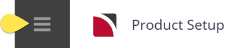
- Click the Product Setup menu to expand it:
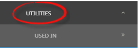
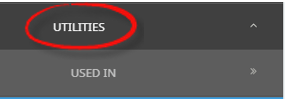
- Click the Utilities menu to expand it:
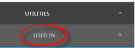
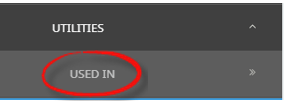
- Select the Used In menu option to run the report and display results on screen:
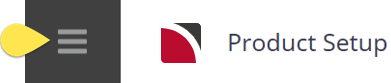
- Click the Product Setup menu to expand it:
-
Returned entries are displayed on theProduct Setup screen.

-
If you are going to continue working with this product, choose another option from the Product Setup menu. If you have finished with this product, clickExit Product to close the report and return to the Supplier/Product search fields on the Product Setup screen.

Deleting Products
Entire Products can be deleted, provided they are not being used by quotes or bookings. If a product has been used in a booking (regardless of travel date), then a message will be displayed advising that the product cannot be deleted.
NOTE:
- If the product has been used, the Used In report can be run to check which bookings/quotes it has been used in.
Delete an Entire Product
- Make sure the product has already been created (see Insert an Accommodation Product).
- If the product is not already displayed, retrieve it (see Searching for Products or Suppliers).
-
Review theproduct to be deleted.

NOTE: A dialog displays advising the product cannot be deleted if it is still in use.
-
If you are sure this product can be deleted, clickDelete.

-
At theDeleting Product prompt, click Yes.
